Overview
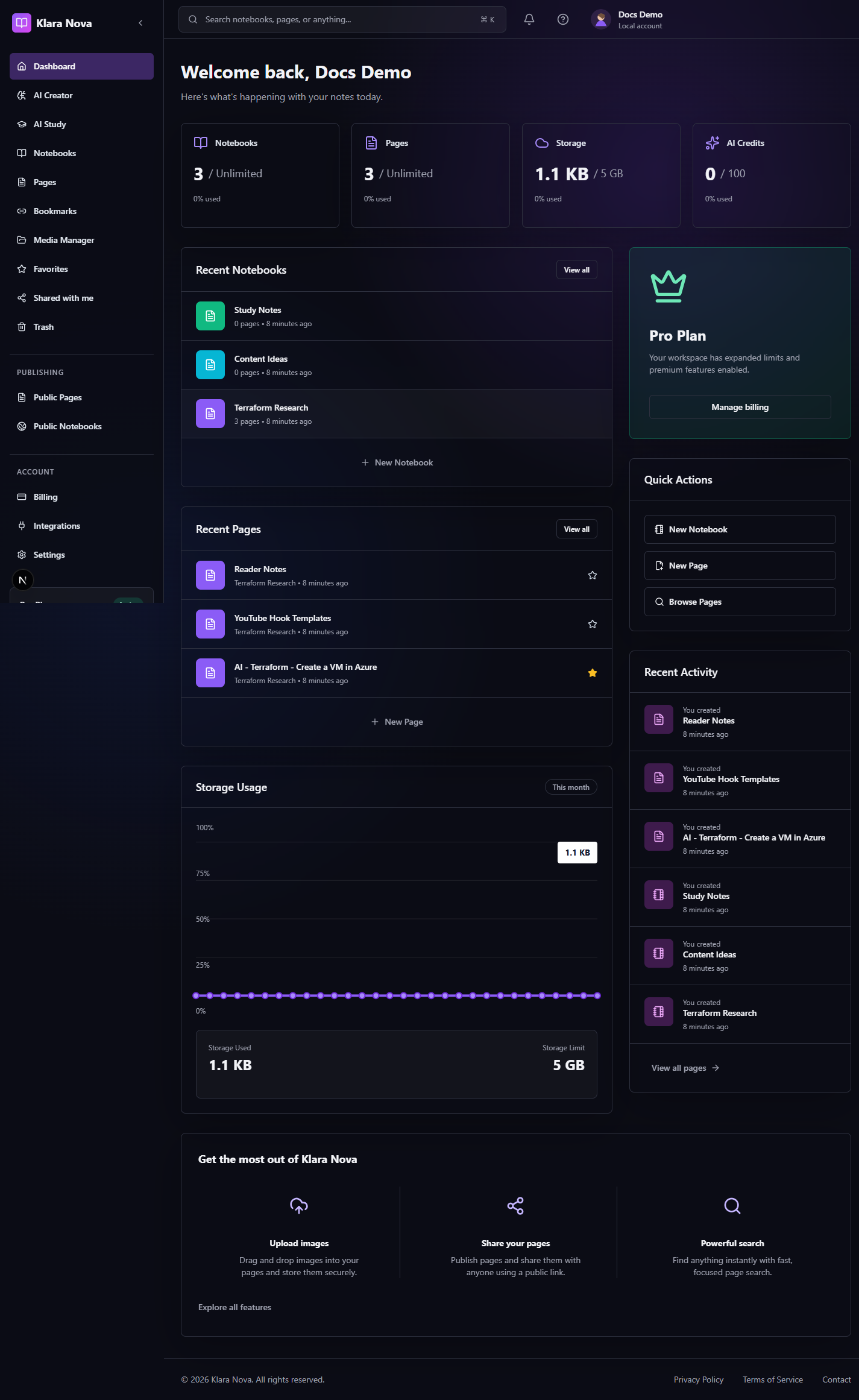
The dashboard is the first operational view after sign-in. It shows notebook and page counts, storage usage, AI credit usage, recent notebooks, recent pages, activity, and shortcuts for common creation flows.
Use The Dashboard
Use the dashboard when you want the fastest way back into active work.
Steps
- 1Review the stat cards for notebooks, pages, storage, and AI credits.
- 2Open a recent notebook or page from the center lists.
- 3Use Quick Actions to create a notebook, create a page, upload media, or save research.
- 4Check the activity panel for recently updated items.
- 5Open billing when limits are close.
- 6Use top-bar search when the recent list does not show the item you need.
Tips
- Treat the dashboard as a launchpad, not a place to organize every detail.
- Storage and AI cards are useful early warnings before a task is blocked.
- Recent activity helps confirm that a save or import completed.
Common mistakes
- Ignoring limit warnings until an upload or AI request fails.
- Creating a new notebook when a current project notebook already exists.
FAQ
Can I undo a change?
Use page history where available, or restore deleted items from Trash before permanent deletion.
Who can see private work?
Private notebooks, pages, media, bookmarks, and notes are only visible to you unless you explicitly share or publish them.