Overview
The media manager stores images and files that support your pages and notebooks. Media can be private or public, inserted into pages, viewed in an expanded image viewer, and counted against storage limits.
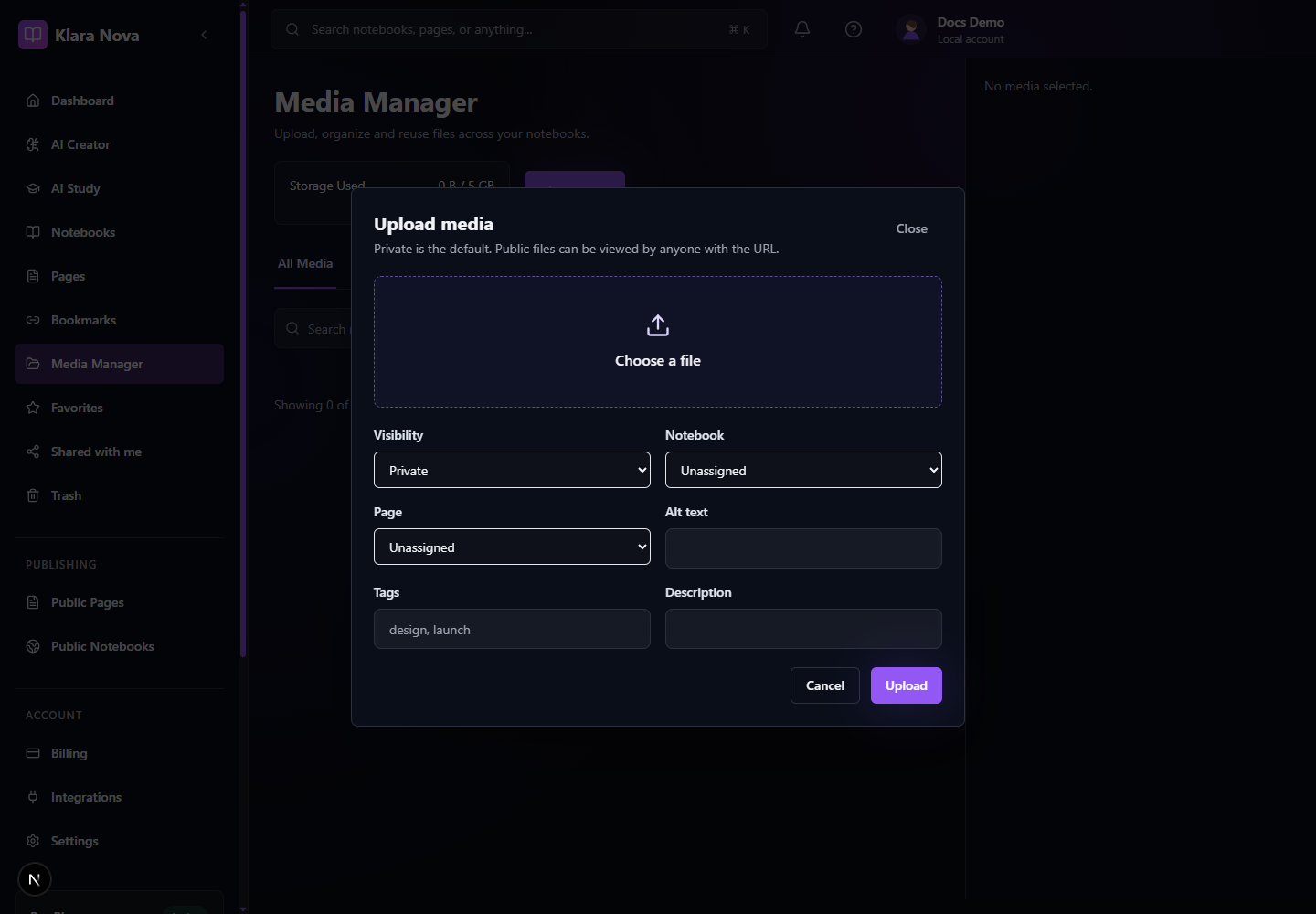
Upload And Insert Media
Use media when a page needs diagrams, screenshots, documents, or supporting files.
Steps
- 1Open Media from the sidebar.
- 2Choose Upload.
- 3Select files or images.
- 4Set visibility to private or public.
- 5Add alt text and useful tags.
- 6Open a page and insert the media from the picker.
- 7Use the expanded image viewer to inspect details.
Tips
- Keep public images safe for anonymous readers.
- Use clear alt text so published pages are more accessible.
- Watch storage usage from dashboard and billing.
Common mistakes
- Publishing a page with private media can leave readers without the expected asset.
- Uploading large files repeatedly can consume storage quickly.
FAQ
Can I undo a change?
Use page history where available, or restore deleted items from Trash before permanent deletion.
Who can see private work?
Private notebooks, pages, media, bookmarks, and notes are only visible to you unless you explicitly share or publish them.