Overview
Notebooks group related pages, bookmarks, media, and collaborators. Use a notebook for a client, product area, study topic, content hub, or internal knowledge base.
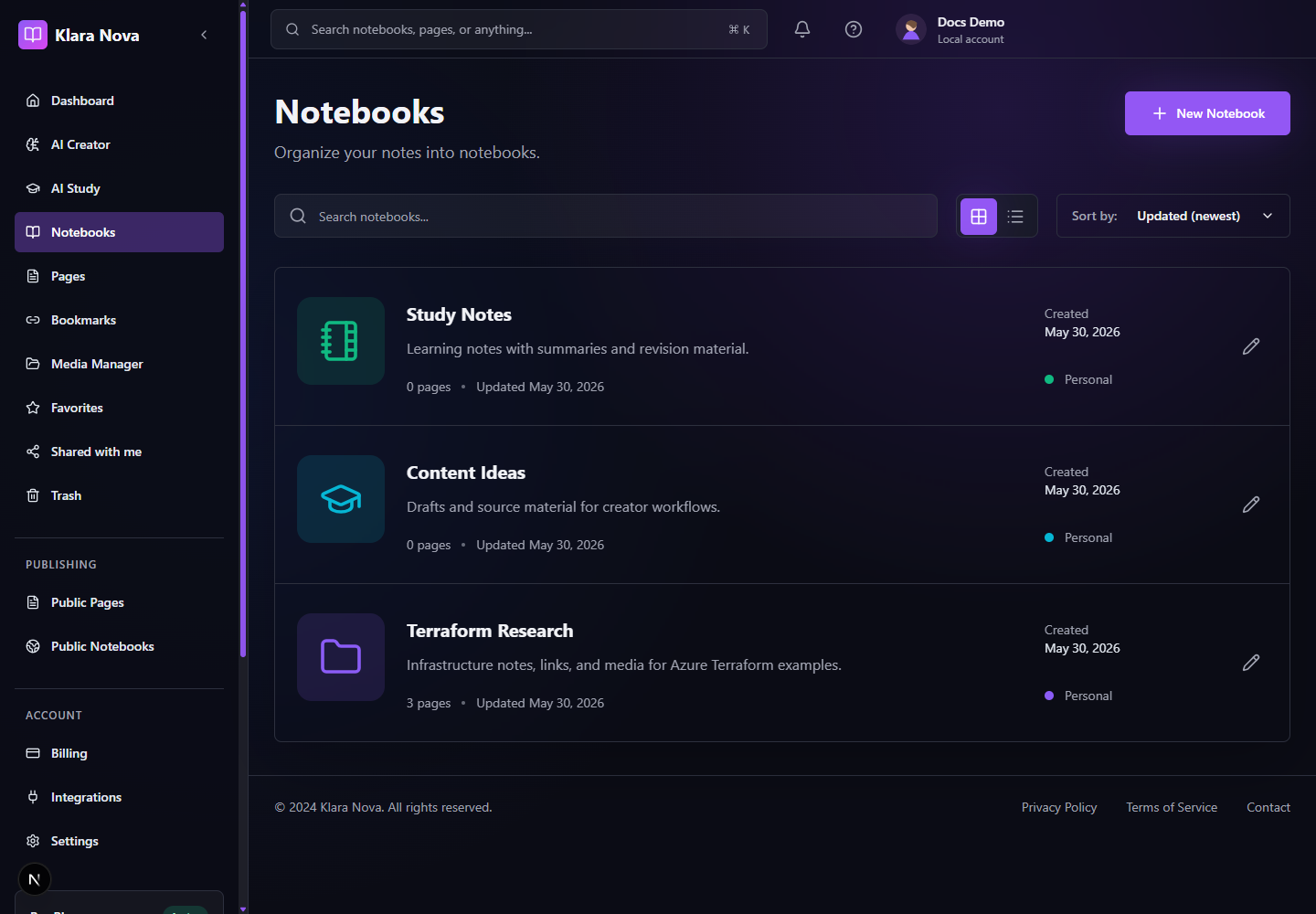
Manage A Notebook
Create notebooks from the dashboard or notebook list, then keep pages, research, and files together.
Steps
- 1Open Notebooks.
- 2Select New Notebook.
- 3Enter a title, optional description, icon, and color.
- 4Open the notebook to add pages, bookmarks, media, and research.
- 5Use Edit to rename or adjust publishing settings.
- 6Publish when the notebook is ready for public readers.
- 7Delete unused notebooks and restore them from Trash if needed.
Tips
- Use colors to distinguish active workstreams.
- Attach bookmarks to the notebook before writing so sources stay close to the work.
- Review public visibility before publishing.
Common mistakes
- Deleting a notebook also affects the pages organized under it.
- Publishing a notebook can expose public pages and public media inside it.
FAQ
Can I undo a change?
Use page history where available, or restore deleted items from Trash before permanent deletion.
Who can see private work?
Private notebooks, pages, media, bookmarks, and notes are only visible to you unless you explicitly share or publish them.